Blogger Widgets N g A P y I n N: June 2011

Pages

လာေရာက္လည္ပါတ္ၾကေသာ သူငယ္ခ်င္းမ်ား အားလံုးကို ေက်းဇူးအထူးဗ်ာ

Friday, June 24, 2011

ကြန္ပ်ဴတာအေျခခံ အပိုင္း(၉)

လြမ္းက AutoCAD လို ့ေခၚတဲ့ Basic Engineering Drawing ကို သင္ၾကားေပးေနသူ ျဖစ္ပါတယ္…


CAD ရဲ့ အဓိပၸါယ္ကိုက Computer Aided Design ပါ… ကြန္ပ်ဴတာအေၾကာင္း မသိပဲ ကြန္ပ်ဴတာနဲ ့ ပံုဆြဲတာကို သင္ၾကားေပးလို ့ မရပါဘူး…


လြမ္းေရးခဲ့တဲ့ ကြန္ပ်ဴတာအေျခခံမ်ားဟာ Application Software တစ္ခုကို မသင္ၾကားမွီ သိသင့္တဲ့ ကြန္ပ်ဴတာနဲ ့ ပတ္သက္တဲ့ အေျခခံသေဘာတရား၊ အေခၚအေ၀ၚေတြပဲ ျဖစ္ပါတယ္…


လြမ္း ေရးခဲ့တာေတြဟာ အေျခခံသေဘာတရားကလြဲလို ့ အေသးစိတ္ေရးထားျခင္း မဟုတ္ပါဘူး…


ကြန္ပ်ဴတာကို သံုးေနသူတစ္ေယာက္အေနနဲ ့ အေျခခံ သိထားသင့္တဲ့ အခ်က္ေတြကိုသာ ေရးသားထားျခင္း ျဖစ္ပါတယ္…


အခုေနာက္ပိုင္း Laptop ၀ယ္သည္ျဖစ္ေစ၊ Desktop ၀ယ္သည္ျဖစ္ေစ Operating Software ကို Windows 7 ကိုသာ တင္ေပးတတ္ပါတယ္…


WindowsXP တုန္းက သံုးရကေကာင္းသလို ေတာ္ေတာ္မ်ားမ်ား Software ေတြကို တင္ရလြယ္ကူပါတယ္…


Windows Vista ထြက္လာေတာ့ Graphic ေတြက အရမ္းေကာင္းလာပါတယ္… ဒါေပမဲ့ တစ္ခ်ိဳ ့ Software ေတြ တင္တဲ့အခါ Error မ်ား ရိွလာပါတယ္…


Windows7 မွာေတာ့ Vista လို Graphic ေတြက ေကာင္းလာတဲ့အျပင္ Software တင္တဲ့အခါမွာလည္း တင္လို ့ လြယ္ကူတာကို ေတြ ့ရမွာပါ…


ဒီေန ့ေတာ့ မိမိရဲ့ ကြန္ပ်ဴတာမွာ File ေတြကို ဘယ္လိုထားသင့္တယ္ဆိုတာနဲ ့ ပတ္သက္လို ့ ေဆြးေႏြးခ်င္ပါတယ္…


လြမ္းရဲ့ Laptop မွာလည္း Windows 7 တင္ထားတာမို ့ Windows 7 ကို အေျခခံၿပီး ေရးသြားပါမယ္…


Display ေပၚမွာ မိမိသံုးေနေသာ Software မွလြဲၿပီး မည္သည့္ File မွ် တင္မထားရင္ ပိုေကာင္းပါတယ္…


Open Files


You can open a file directly from My Computer or Windows Explorer to display its contents on your screen.
Each file on your computer is associated with a program. When you open a file, the associated program starts automatically. For example, bitmap files with the extension .bmp are usually associated with the Paint program. When you pen a file with the .bmp extension, the Paint program starts and the file is opened.
If Windows does not know which program to start, the Open With dialog box appears. You can choose which program you want to use to display the file.

Windows7 မွာ Windows Explorer ဖြင့္တာဟာ Libraries ကို Click လုပ္ ဖြင့္လိုက္႐ံုပါပဲ…


ဒီေနရာမွာ မိမိဖြင့္ထားတဲ့ Path လမ္းေၾကာင္းေလးကို Address Bar က ျပေနမွာ ျဖစ္ပါတယ္…


မိမိေရြးခ်ယ္ထားေသာ File ရဲ့ အခ်က္အလက္ေတြကို Status Bar ကေန ျပေနမွာပါ…


Menu Bar မွလည္း မိမိ အသံုးျပဳလိုရာကို ေရြးခ်ယ္ေပးႏိုင္ပါတယ္… ဥပမာ Organize Menu ကို Click လုပ္ၾကည့္လွ်င္ Cut, Copy, Paste, Rename, Select All စသျဖင့္ ပါရိွမွာပါ…


လြမ္းက My Pictures ေအာက္မွာ DL Pictures လို ့ Folder ေလးတစ္ခု ဖြင့္ထားတာပါ…


My Pictures ေအာက္မွာ Folder အသစ္ဖြင့္လိုပါက My Pictures တြင္ Mouse Pointer ထားၿပီး Right Click ျပဳလုပ္ပါက ေပၚလာေသာ Pop-up Menu ထဲမွ New>>>Folder ကို ေရြးၿပီး မိမိေပးလိုေသာ နာမည္ကို ေပး႐ံုပါပဲ…
လြမ္းက Comment ေပးတဲ့အခါ ပံုလွလွေလးေတြ လိုက္ေပးတတ္သလို ကိုယ့္ဆီလာေပးတဲ့ပံုေလးေတြကိုလည္း သိမ္းထားတတ္ပါတယ္…


ပံုေတြက မ်ိဳးစံုပါ၀င္တာမို ့လြမ္းက DL pictures ထဲမွာ Folder ေတြ ထပ္ခြဲထားပါတယ္…


ပံုမွာ ျမင္ရတဲ့အတိုင္း ၀က္၀ံ၊ ေၾကာင္၊ စံုတြဲ၊ ေကာ္ဖီ၊ ႏွင္းဆီ စသျဖင့္ပါ…


ခုဆိုရင္ Address Bar မွာ ျမင္ရတဲ့အတိုင္း Coffee ဆိုတဲ့ Folder ကို ဖြင့္ထားတာပါ…


ဘယ္ဖက္ျခမ္းမွာက Folder မ်ားကိုသာျပၿပီး ညာဖက္ျခမ္းမွာ မိမိေရြးခ်ယ္ထားတဲ့ Folder ထဲမွ Files မ်ားကို ျပတာပါ… လြမ္းသိမ္းထားေသာ ေကာ္ဖီပံုမ်ားကို ျမင္ရမွာပါ…


အဲဒီ File ေတြထဲက ကိုယ္ဖြင့္ခ်င္တဲ့ ပံုကို Double Click လုပ္တာနဲ ့ ပြင့္သြားမွာပါ…


Open File လုပ္လိုက္တာပါ… ကိုယ္ထည့္ထားတဲ့ Software ေပၚမူတည္ၿပီး ပံုကို ဖြင့္ျပမွာပါ…


လြမ္းရဲ့ Coffee ပံုက Windows Photo Viwer နဲ ့ ပြင့္သြားတာပါ…


ကိုယ္ဖြင့္ခ်င္တဲ့ Software Location ကိုလည္း ေပးလို ့ရပါတယ္…


ေပးပံုေပးနည္းက Double Click မလုပ္ပဲ ကိုယ္ဖြင့္ခ်င္တဲ့ပံုကို Mouse Pointer ထားၿပီး Right Click >>>Open with ဆိုတာကို ေထာက္လိုက္ရမွာပါ…

ကိုယ့္စက္ထဲမွာ ရိွတဲ့ Software ေပၚလာပါလိမ့္မယ္…


ဥပမာ- လြမ္းက ပံုကို ခ်ဲ ့ခ်င္ (သို ့မဟုတ္) ခ်ံဳ ့ခ်င္တဲ့အခါ Open with ထဲက Microsoft Office Picture Manager ကို ေရြးၿပီး ဖြင့္လိုက္ပါတယ္…
ပံုဟာ Microsoft Office Picture Manager နဲ ့ ပြင့္လာပါတယ္… ဒီေနရာမွာ ေျပာခ်င္တာက မိမိစက္မွာ Microsoft Office တင္ထားမွသာ Picture Manager က ပါလာမွာပါ…

Open Recently Used Files


Windows helps you quickly find and open a file you recently worked with.
Windows remembers the last files you opened or saved and displays the names of the files in a list on the Start menu. You can quickly open any of these files to review or make changes to the files.


Windows7 မွာ မိမိေနာက္ဆံုးအသံုးျပဳခဲ့ေသာ Files မ်ားကို သိမ္းထားတဲ့အတြက္ အလြယ္တကူ ျပန္လည္ဖြင့္ႏိုင္ပါတယ္…


Start ကို Click ျပဳလုပ္တာနဲ ့ မိမိသံုးခဲ့ေသာ Software မ်ားတြင္ မွ်ားအနက္ေပၚေနၿပီး ေနာက္ဆံုး သိမ္းခဲ့ေသာ File ၁၀-ခုကို ျပထားသည့္အတြက္ မိမိဖြင့္လိုသည့္ File ကို ဖြင့္႐ုံပါပဲ…


လြမ္းက အခုစာႏွင့္တြဲ၍ Paint တြင္ Print Screen ပံုမ်ား Paste ျပဳလုပ္သိမ္းထားသည့္အတြက္ Paint တြင္ လြမ္းေနာက္ဆံုးသိမ္းခဲ့ေသာ ပံုမ်ား ရိွေနပါတယ္…


မိမိဖြင့္လိုေသာပံုကို Click ျပဳလုပ္႐ံုမွ်ျဖင့္ သက္ဆိုင္ရာ Paint Software တြင္ပြင့္သြားမွာ ျဖစ္ပါတယ္…


မိမိေနာက္ဆံုးနားေထာင္ခဲ့ေသာသီခ်င္းမ်ား၊ ပံုမ်ား၊ စာမ်ားကို Start ျပဳလုပ္ၿပီး ျပန္လည္ဖြင့္ႏိုင္ပါတယ္…


ဒီေန ့ေတာ့ File ေလးေတြကို Folder ခြဲသိမ္းတတ္ဖို ့နဲ ့ ဖြင့္ပံု၊ ဖြင့္နည္းေလးကိုပဲ ေဆြးေႏြး ေရးသားပါတယ္…


ကြန္ပ်ဴတာကို သံုးျခင္းျဖင့္ နည္းပညာမ်ား တိုးတက္ပါေစ…။

ေက်းဇူးအထူးပါ မမလြမ္း..။

Monday, June 20, 2011

ကြန္ပ်ဴတာအေျခခံ အပိုင္း (၈)

How Do I Keep My Computer Healthy?
မိမိကြန္ပ်ဴတာကို ထိန္းသိမ္းနည္း

ယေန ့ မိမိသံုးေနေသာ ကြန္ပ်ဴတာကို ထိန္းသိမ္းနည္း တင္ျပခ်င္ပါသည္။
Computers are expensive, and with all big purchases, you probably want to protect your investment. Luckily, it is not difficult to keep your computer healthy and in good working order.

Basically, there are 3 areas that you need to maintain. You need to:
       Keep the physical components of your computer clean
       Protect your computer from threats such as viruses, and
       Keep your files in order to make day-to-day use of your computer efficient and easy.


ကြန္ပ်ဴတာသည္ ေစ်းႀကီးျမင့္သည့္အတြက္ မိမိကြန္ပ်ဴတာကို ထိန္းသိမ္းရန္ လိုအပ္ပါသည္။ မိမိကြန္ပ်ဴတာကို ေန ့စဥ္ ထိန္းသိမ္းသည္မွာ ခက္ခဲေသာကိစၥ မဟုတ္ပါ။

အေျခခံအားျဖင့္ ထိန္းသိမ္းရန္ နည္း ၃-မ်ိဳး လုပ္ေဆာင္ရပါမည္။

၁။ မိမိကြန္ပ်ဴတာကို သန္ ့ရွင္းေရးျပဳလုပ္ရန္ လိုအပ္ပါသည္။
၂။ Viruses မ်ားမ၀င္ရန္ Anti-Virus Software မ်ား ထည့္ထားရန္ လိုအပ္ပါသည္။
၃။ မိမိကြန္ပ်ဴတာကို သံုးစြဲရန္ လြယ္ကူေအာင္ မိမိ Files မ်ားကို စနစ္တက် သိမ္းဆည္းရန္ လိုအပ္ပါသည္။

To Clean an LCD/Flat-Panel Screen

       Turn off the computer and unplug it.
       Disconnect the monitor from the computer case, if working with a desktop computer.
       Wipe a dry, soft cloth across the screen. Any soft cloth will work, or you can use a special monitor cleaning cloth.
       If dust, fingerprints, or dirt remain on the screen, dampen the cloth with rubbing alcohol.
       Wipe the screen with the damp cloth.
Do not spray any liquids directly onto the LCD screen. Do not use a paper towel as it can scratch the screen. Do not use glass cleaner on LCD screen, as it can remove any anti-glare protection that is on it.

၁။ မိမိ၏ Monitor Screen ကို သန္ ့ရွင္းေရးျပဳလုပ္ရန္ ပထမဆံုး ကြန္ပ်ဴတာရဲ့ Power Plug ကို ျဖဳတ္ထားရပါမည္။
တကယ္လို ့ Desktop Computer ကို အသံုးျပဳသူျဖစ္ပါက Monitor ႏွင့္ Computer Casing တို ့ ကို ဆက္သြယ္ထားေသာ ႀကိဳးကို ျဖဳတ္ရပါမည္။
Monitor Screen ကို ေျခာက္ေသြ ့ၿပီး ႏူးညံ့ေသာအ၀တ္ႏွင့္ အေပၚမ်က္ႏွာျပင္မွ ေအာက္ဖက္မ်က္ႏွာျပင္သို ့ ဆြဲခ်ၿပီး သုတ္ပါ။ Monitor Cleaning Cloth ကိုလည္း အသံုးျပဳႏိုင္ပါသည္။
အကယ္၍ ဖုန္မ်ား၊ လက္ေဗြရာမ်ား Screen မ်က္ႏွာျပင္တြင္ က်န္ေနပါက Rubbing Alcohol ဆြတ္ထားေသာအ၀တ္ႏွင့္ သုတ္ပါ။
LCD Screen ေပၚကို မည္သည့္အရည္ႏွင့္မွ် တိုက္႐ိုက္ မျဖန္းရပါ။ စကၠဴကို အသံုးမျပဳရပါ။ Glass Cleaner ကိုလည္း အသံုးမျပဳရပါ။ Glass Cleaner သည္ LCD Screen ေပၚရိွ Anti-glare Protection ကို ပ်က္စီးေစတတ္ပါသည္။

Avoid Downloading Programs from Unknown Sources

The Internet is full of unknown sources. If you are going to use the Internet, become a savvy web surfer. Learn to look and explore a website to determine if it is a credible site and most likely safe to download from. Think about who is responsible for the web site and make your best judgment before downloading games, programs, or documents from unknown sources.

Be Cautious of Email Attachments

Never double-click on an email attachment that contains an executable file with an extension such as .exe or .vbs. In generally, be cautious of email attachments and don't download or open files from people you do not know or were not expecting to receive an email from.

၂။ မိမိကြန္ပ်ဴတာမွာ Virus မ်ားမ၀င္ေစရန္အတြက္ မိမိ မသိေသာ Website မ်ားမွ Download ျပဳလုပ္ျခင္းကို ေရွာင္ၾကဥ္ရပါမည္။ Games, Programs ႏွင့္ Documents မ်ားကို မိမိ မသိေသာ Website မွ Download မျပဳလုပ္မွီ Website ကို မည္သူက တာ၀န္ယူျပဳလုပ္ထားသည္ကို အရင္ၾကည့္ၿပီးမွ ဆံုးျဖတ္ပါ။
Email Attachment မ်ားတြင္ Executable File ကဲ့သို ့ေသာ Extension .exe or .vbs Files မ်ားကို Double Click မျပဳလုပ္ပါႏွင့္။ မိမိမသိေသာသူမ်ားမွ ေပးပို ့ေသာဖိုင္မ်ားကို Download ျပဳလုပ္ျခင္းကို ေရွာင္ၾကဥ္ပါ။

၃။ မိမိစက္အတြင္းရိွ File မ်ားကို စနစ္တက်စီရန္အတြက္ အသံုးျပဳေသာနည္းမွာ Windows Explorer ကို ဖြင့္ျခင္းျဖစ္ပါသည္။

About Windows Explorer

Windows Explorer is an application that provides detailed information about your files, folders, and drives. You can use it to see how your files are organized and to copy, move, and rename files, as well as perform other tasks pertaining to files, folders, and drives.
The simplest way to access Windows Explorer is to right-click the Start menu or the My Computer icon and select Explore. If your keyboard has a Windows logo key, you can press Win-e to launch Windows Explorer. Alternatively, you can access it from the Start menu. In newer operating systems, it is under Accessories.


Windows Explorer သည္ မိမိစက္အတြင္းရိွ Files, Folders ႏွင့္ Drives မ်ား၏ အေသးစိတ္အခ်က္အလက္မ်ားကို သိရိွႏိုင္ပါသည္။ မိမိ Files မ်ားကို ကူးျခင္း၊ ေရႊ ့ျခင္း၊ နာမည္ေျပာင္းျခင္းစသည္မ်ားကို Windows Explorer အသံုးျပဳျခင္းသည္ ရွင္းလင္း လြယ္ကူေစႏိုင္ပါသည္။
Windows Explorer ကို အလြယ္ကူဆံုး ဖြင့္သည့္နည္းမွာ Start ဆိုေသာ Menu ေပၚတြင္ Right Click ျပဳလုပ္၍လည္းေကာင္း၊ My Computer Icon ေပၚတြင္ Right Click ျပဳလုပ္ၿပီး Exploreကို ေရြးခ်ယ္ပါ။
ေနာက္တစ္နည္းမွာ သင္၏ Keyboard တြင္ Windows Logo Key ပါရိွပါက Windows Logo Key ႏွင့္ E Key ကို တြဲဖက္ႏွိပ္လွ်င္လည္း Windows Explorer ပြင့္လာပါလိမ့္မည္။
ေနာက္တစ္နည္းမွာ Start Menu မွAll Programs ကို ေရြးခ်ယ္၍ Accessories မွ Windows Explorer ကို ဖြင့္လွ်င္လည္း ရပါသည္။

Using Windows Explorer

The Exploring window has two panes. The left pane shows the structure of your drives and folders. The right pane shows the contents of the drive or folder selected in the left pane. You can expand the information available in the left pane to show some or all of the drives and folders available on your computer. You can also reduce the information in the left pane to provide an overview of the items available on your computer.
You can use Windows Explorer to manage and organize files, start programs and open documents.

To change the size of the panes in the window, position the mouse over the vertical bar that separates the two panes and drag the bar to a new location.

A folder displaying a plus sign + contains more folders. Click the plus sign + to display more folders.

The plus sign + beside the folder changes to a minus sign - . This indicates that all the folders within the folder are displayed.

Windows Explorer ကို အသံုးျပဳျခင္း


Exploring Window တြင္ ႏွစ္ျခမ္းခြဲထားပါသည္။ ဘယ္ဖက္ျခမ္းမွာ Drives ႏွင့္ Folders မ်ားကိုသာ ျပပါသည္။ ညာဖက္ျခမ္းတြင္ မိမိေရြးခ်ယ္လိုက္ေသာ Drive သို ့မဟုတ္ Folder ထဲမွာ ပါ၀င္ေသာ Files ႏွင့္ Folder မ်ားကို ျပပါသည္။ ဘယ္ဖက္ျခမ္းရိွ Drives ႏွင့္ Folders မ်ားကို ထပ္မံအေသးစိတ္သိလိုပါက ထပ္ဖြင့္ႏိုင္သလို ျပန္ပိတ္၍လည္း ရပါသည္။
Windows Explorer ကို အသံုးျပဳျခင္းျဖင့္ Files မ်ားကို စုစည္းထားႏိုင္သလို Programs မ်ားႏွင့္ Documents မ်ားကိုလည္း ဖြင့္ႏိုင္ပါသည္။
ခြဲျခားထားေသာ ေနရာအက်ဥ္းအက်ယ္ကို ေထာင္လိုက္ဘားေပၚသို ့ mouse ကို တင္လိုက္လွ်င္  Two Headed Arrow ေပၚလာပါက Mouse Left Button ကို ဖိထားၿပီး ေနရာေရႊ ့ ေပးႏိုင္ပါသည္။
Windows XP တြင္ Folder တစ္ခုတြင္ + လကၡဏာျပေနပါက Folder ထပ္ရိွေနသည္ကို ေဖာ္ျပပါသည္။ + ကို Click ျပဳလုပ္ပါက Folder မ်ား ထပ္ပြင့္လာသည္ကို ေတြ ့ရပါမည္။
Folder ေဘးမွ + လကၡဏာက - လကၡဏာအျဖစ္ေျပာင္းသြားပါက Folder မ်ား အားလံုး ေဖာ္ျပထားသည္ကို ဆိုလိုပါသည္။


Windows 7 တြင္ + - လကၡဏာမ်ားမပါပါ။ မွ်ားပံုးစံေလးျဖင့္သာ ျပပါသည္။ ေအာက္ဖက္သို ့ စိုက္ေနလွ်င္ Folder မ်ားအကုန္ဖြင့္ထားျခင္းျဖစ္ၿပီး မွ်ားက ေဘးတိုက္ရိွေနပါက ထပ္ဖြင့္ႏိုင္ေသးသည္ကို ေဖာ္ျပပါသည္။
ဖိုင္မ်ားကို သီခ်င္း၊ ဓါတ္ပံု၊ စာ စသျဖင့္ သီးျခားသိမ္းဆည္းထားပါက မိမိသိမ္းဆည္းထားသည္တို ့ ကို အလြယ္တကူ ျပန္လည္ရွာႏိုင္မည္ျဖစ္ပါသည္။
Files မ်ားကို မည္ကဲ့သို ့ ျပဳလုပ္ရမည့္အေသးစိတ္ကို ေနာင္တြင္ ထပ္မံရွင္းျပပါမည္။
ကြန္ပ်ဴတာသံုးစြဲ၍ နည္းပညာမ်ား ေလ့လာႏိုင္ပါေစ။


မမလြမ္း ေပ်ာ္ရႊင္ပါေစ..။

Saturday, June 4, 2011

ကြန္ပ်ဴတာ အေျခခံ အပိုင္း (၇)

ဒီေန ့ေတာ့ မိမိကြန္ပ်ဴတာကို ျပဳျပင္ထိန္းသိမ္းတဲ့နည္းေလး ေျပာျပပါ့မယ္…

ကိုယ္ပိုင္စက္နဲ ့ အင္တာနက္သံုးတဲ့သူေတြအတြက္ အသံုး၀င္မယ္လို ့ ထင္ပါတယ္…

ကြန္ပ်ဴတာကို သံုးတာၾကာလာတဲ့အခါ စက္ေလးလာတာတို ့၊ သိမ္းရခက္တာတို ့ ျဖစ္လာတာကို ၾကံဳဖူးမွာပါ…

၁။ အင္တာနက္သံုးတဲ့စက္ဆိုရင္ Website တစ္ခုကို ၀င္လိုက္တာနဲ ့ ကိုယ္ၾကည့္တဲ့ Web Pages ေတြ၊ ပံုေတြကို Temporary Internet Files မ်ားအျဖစ္ Hard Disk မွာ သိမ္းထားတတ္ပါတယ္…

၂။ မိမိ ၀င္တဲ့ Web Page က ပံုေတြ၊ သီခ်င္းေတြ Download လုပ္တဲ့အခါမွာလည္း Downloaded Program Files မ်ားကို Hard Disk က သိမ္းထားတတ္ပါတယ္…

၃။ မိမိ မလိုခ်င္လို ့ ဖ်က္လိုက္တဲ့ Files မ်ားဟာ Recycle Bin မွာ ရိွေနတတ္ပါတယ္… လံုး၀ မလိုခ်င္ေတာ့ဘူးဆိုတာ ေသခ်ာတယ္ဆိုရင္ေတာ့ Empty the Recycle Bin လုပ္ရပါမယ္…

၄။ တစ္ခ်ိဳ ့ေသာ Program မ်ားကလည္း Temporary Files မ်ားအျဖစ္ Hard Disk ေပၚမွာ သိမ္းထားတတ္တဲ့အတြက္ Hard Disk ရဲ့ ေနရာကို ယူထားတတ္ပါတယ္…

ဒီအခ်က္ေတြေၾကာင့္ မိမိကြန္ပ်ဴတာရဲ့ Hard Disk ရဲ့ Free Space ကို ျပန္လည္ရယူႏိုင္ရန္အတြက္ Disk Cleanup ဆိုတာ လုပ္ေပးရပါမယ္…

Disk Cleanup လုပ္ရင္ ဘယ္အရာကို ဖ်က္မလဲဆိုတာ ေမးပါတယ္…

Disk Cleanup လုပ္ၿပီးရင္ေတာ့ စက္က သံုးရတာ ျမန္လာၿပီး Hard Disk မွာ သိမ္းရမဲ့ေနရာ ပိုလာတာကို ေတြ ့ရမွာပါ…


Use Disk Cleanup to remove unneeded files

You can use Disk Cleanup to find and remove files that are no longer needed. This can increase the amount of available space on your hard disk.

Disk Cleanup can find four types of files. You can select which of the four types of four types of files you want to remove from your disk.

Temporary Internet files are Web pages and images Windows stores on your hard disk while you are browsing the Web. Using temporary Internet files saves Windows from having to transfer the same pages and images to your computer each time you view them.

Downloaded program files are small programs that some Web pages require to display properly or to perform certain functions. These programs are transferred to your hard disk when you visit the Web page.

The Recycle Bin contains files you have deleted. These files are permanently removed from your computer when you empty the Recycle Bin.

While working, some programs store temporary files on your hard disk. If these files are not removed when the program has finished using them, they can take up valuable storage space.


ေနာက္ျပဳျပင္ထိန္းသိမ္းရမဲ့ နည္းလမ္းကေတာ့ Defragmenter ဆိုတာကို ျပဳလုပ္ေပးတာပါ…

မိမိကြန္ပ်ဴတာကို သံုးတာၾကာလာတဲ့အခါ Program ေတြကို တင္လိုက္၊ ဖ်က္လိုက္၊ ပံုေတြကို သိမ္းလိုက္၊ ဖ်က္လိုက္နဲ ့ Hard Disk ေပၚမွာ Fragmented Files ေတြျဖစ္လာပါတယ္… Fragment ျပန္ ့က်ဲလာတာပါ… အဲဒီ့အခါ Files ေတြကို ထပ္မံသိမ္းတဲ့အခါ Hard Disk ေပၚမွာ ကြဲျပားေနတဲ့ဧရိယာေတြ ျဖစ္ေပၚလာပါတယ္… အစီအစဥ္တက် မသိမ္းႏိုင္ေတာ့ပါဘူး…

ဒါေၾကာင့္ Fragmented Files ေတြ ျပန္ ့က်ဲမေနေအာင္ Defragmenter ဆိုတာ လုပ္ေပးရတာပါ…

Disk Defragmenter ဟာ သံုးေနက် Program ေတြကို ျပန္စီေပးတာေၾကာင့္ Defragmenter လုပ္ၿပီးရင္ သံုးရတာ ျမန္လာမွာပါ… ဒါေပမဲ့ Disk Defragmenter မသံုးခင္ မိမိ Drive မွာ Error ရိွမရိွ စစ္ေဆးရပါတယ္…

Drive မွာ Error ရိွေနရင္ Defragmenter သံုးလို ့မရပါဘူး…

Defragment your hard disk

You can improve the performance of your computer by using Disk Defragmenter.

Over time, the files on a hard drive become more and more fragmented. To retrieve or save a file, the computer must use many different areas on the hard drive. Disk Defragmenter reorganizes your files to reduce fragmentation and improve the performance of your drive.

You can have Disk Defragmenter rearrange your most frequently used programs so they will start faster. You can also check a drive for errors before defragmenting the drive.

If a drive contains errors, the drive cannot be defragmented.


ကြန္ပ်ဴတာကို Disk Defragmenter လုပ္ေနခ်ိန္ အေတာအေတြင္းမွာ ကြန္ပ်ဴတာအလုပ္လုပ္ရတာ ေႏွးသြားမွာ ျဖစ္ပါတယ္… အခ်ိန္အေတာ္ယူပါတယ္… ဒါေၾကာင့္ Disk Defragmenter မလုပ္ခင္ တျခားသံုးေနတဲ့ Program ေတြကို ပိတ္ထားရင္ ပိုေကာင္းပါတယ္…

ဒါမွမဟုတ္ ကြန္ပ်ဴတာမသံုးေတာ့တဲ့အခ်ိန္မွာ Defragmenter ကို သံုးတာ အေကာင္းဆံုးပါပဲ…

You can use your computer to perform tasks while Disk Defragmenter is running, but your computer will operate more slowly. Disk Defragmenter must restart each time another program accesses the drive, so the defragmentation process will take longer. You may want to close other programs before defragmenting a drive.

It is best to defragment at a time when you are not using your computer.


မိမိကြန္ပ်ဴတာမွာ Error ရိွတယ္ဆိုရင္ေတာ့ ScanDisk ျပဳလုပ္ေပးရမွာပါ…

Standard Test လုပ္ရင္ မိမိကြန္ပ်ဴတာရဲ့ Files နဲ ့ Folders ေတြမွာ Error ရိွမရိွ စစ္ေပးတာပါ…

Thorough Test လုပ္ရင္ေတာ့ Standard Test လို လုပ္ေပးတဲ့အျပင္ Disk မ်က္ႏွာျပင္မွာ ပ်က္စီးမႈ ရိွမရိွဆိုတာပါ စစ္ေပးတာပါ… Bad Sector ဆိုတာ ၾကားဖူးမွာပါ… ScanDisk Run လို ့ မိမိ Hard Drive မွာ Bad Sector ေတြ မ်ားလာရင္ Hard Disk အသစ္လဲရတတ္ပါတယ္…


Hard Disk

ScanDisk က သာမန္ Error ကို Fix လုပ္ေပးပါတယ္…

ScanDisk ျပဳလုပ္ၿပီးရင္ မိမိ Drive ရဲ့ စစ္ေဆးခ်က္ မွတ္တမ္း ေပၚလာမွာပါ…

Check for Disk Errors

ScanDisk is a program included with Windows that detects and repairs disk errors on hard drive.

The standard test checks for errors in files and folders. The thorough test performs the same check as the standard test and also checks the disk surface for physically damages areas that can no longer be used to store information.

You can have ScanDisk automatically fix the errors it finds.

When ScanDisk is finished checking a drive, a summary appears, displaying information about the drive.


မိမိကြန္ပ်ဴတာရဲ့ Operating System Software ေပၚမူတည္၍ ပံုစံအနည္းငယ္ ကြာျခားေသာ္လည္း အေျခခံသေဘာတရားခ်င္း တူညီပါသည္။ ဥပမာ - WindowsXP, Vista, Windows 7

မိမိကြန္ပ်ဴတာကုိ ကိုယ္တိုင္ျပဳျပင္ထိန္းသိမ္းႏိုင္ၾကပါေစ…

ေအာင္ျမင္ေနပါေစ မမလြမ္း....

ကြန္ပ်ဴတာအေျခခံ အပိုင္း (၆)

ဒီေန ့ေတာ့ Network အေၾကာင္းကို ရွင္းျပပါမယ္…

သူငယ္ခ်င္းတို ့ အခုသံုးေနတဲ့ အနာဂတ္ေကာင္းကင္ဟာ Ning Network ျဖစ္ပါတယ္…

ပင္မစာမ်က္ႏွာညာဖက္ ကိုႀကီးႏႈတ္ခမ္းေမႊးပံုမွာ ေရးထားတဲ့စာေလးကို ဖတ္မိမွာပါ…

futuresky created this Ning Network ဆိုတာကို ေတြ ့ၾကမွာပါ…

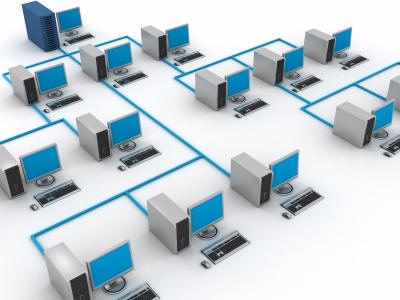
ႏိုင္ငံအသီးသီးက သူငယ္ခ်င္းမ်ားက မိမိတို ့ရဲ့ ကြန္ပ်ဴတာကို အင္တာနက္နဲ ့ ခ်ိတ္ဆက္ၿပီး သတင္းအခ်က္အလက္မ်ား၊ စာေပမ်ား၊၊ သီခ်င္းမ်ား၊ Video မ်ားကို ေ၀မွ်ခံစားေစတာဟာ Network ႀကီးတစ္ခုထဲမွာ လႈပ္ရွားေနၾကတာပါ…


INTRODUCTION TO NETWORKS

A network is a group of connected computers that allow people to share information and equipment.

Network ဆိုတာ အခ်က္အလက္ေတြ၊ ကိရိယာေတြကို ေ၀မွ်သံုးစြဲတာကို ခြင့္ျပဳတဲ့ ကြန္ပ်ဴတာအခ်င္းခ်င္း ခ်ိတ္ဆက္ထားတဲ့ အုပ္စုကို ဆိုလိုတာပါ…


Types of Networks
Network အမ်ိဳးအစားမ်ား

Local Area Network
A Local Area Network (LAN) is a network that connects computers within a small geographic area, such as a building.

Local Area Network (LAN) ဆိုတာဟာ အေဆာက္အဦတစ္ခုထဲအတြင္းမွာပဲ ကြန္ပ်ဴတာေတြကို ခ်ိတ္ဆက္အသံုးျပဳတာကို ဆိုလိုတာပါ…

ကုမၸဏီမ်ား၊ အင္တာနက္ဆိုင္ (Cyber Cafe) ေတြမွာ ကြန္ပ်ဴတာကို တစ္ခုနဲ ့တစ္ခု ခ်ိတ္ဆက္အသံုးျပဳတာကို LAN လို ့ ေခၚပါတယ္…

Wide Area Network
A Wide Area Network (WAN) is a network that connects computers across a large geographic area, such as a city or country. A WAN can transmit information by telephone line, microwave or satellite.

Wide Area Network (WAN) ဆိုတာကေတာ့ ၿမိဳ ့ေတြ၊ တိုင္းျပည္ေတြကို ျဖတ္ၿပီး ကြန္ပ်ဴတာမ်ား ခ်ိတ္ဆက္အသံုးျပဳတာကို ဆိုလိုတာပါ… WAN ကေတာ့ တယ္လီဖံုးလိုင္း (သိုးမဟုတ္) ၿဂိဳလ္တုစနစ္နဲ ့ သတင္းအခ်က္အလက္ေတြကို ေပးပို ့တာပါ…

Network Advantages
Network ဆက္သြယ္ျခင္းရဲ့ အက်ိဳးေက်းဇူးမ်ား

Work Away From Office
When traveling or at home, you can connect to the network at work to exchange messages and files.

မိမိခရီးသြားတဲ့အခါျဖစ္ေစ၊ အိမ္မွာေနရင္းျဖစ္ေစ Network ခ်ိတ္ထားမယ္ဆိုရင္ သတင္းနဲ ့ ဖိုင္မ်ားကို ဖလွယ္လို ့ ရပါတယ္…

Share Information
Networks let you easily share data and programs. You can exchange documents, electronic mail, video, sound and images.

Network ခ်ိတ္ထားျခင္းျဖင့္ အခ်က္အလက္ေတြ၊ Programs ေတြကို ေ၀မွ်လို ့ လြယ္ပါတယ္… စာေတြ၊ E-Mail ေတြ၊ Video ေတြ၊ အသံေတြနဲ ့ ႐ုပ္ပံုေတြကို ဖလွယ္လို ့ရပါတယ္…
ဆိုလိုတာကေတာ့ လြမ္းတို ့ေတြ Data ေတြကို သိမ္းဆည္းႏိုင္တဲ့ Memory Stick တို ့၊ External Harddisk တို ့ မလိုေတာ့တာပါ…

Share Equipment
Computers connected to a network can share equipment, such as a printer or modem.

Network ခ်ိတ္ထားမယ္ဆိုရင္ Printer တို ့၊ Modem တို ့၊ Scanner တို ့ကို ကြန္ပ်ဴတာအားလံုးက ေ၀မွ်သံုးစြဲႏိုင္တာပါ…


ဥပမာအားျဖင့္ အင္တာနက္ဆိုင္မွာ Modem တစ္ခုပဲ လိုပါတယ္… Computer ေတြကို Network ခ်ိတ္ထားၿပီး Internet ကို ေ၀မွ်သံုးစြဲေနတာပါ…


Network Administrator
A network administrator manages the network and makes sure the network runs smoothly. A network administrator may also be called a network manager, information systems manager or system administrator.

Network Administrator ဆိုတာဟာ Network ကို ေခ်ာေမြ ့စြာ အသံုးျပဳႏိုင္ေအာင္ စီမံ အုပ္ခ်ဳပ္ရတဲ့သူကို ဆိုလိုတာပါ… Network Administrator ကို Network Manager, Information Systems Manager ဒါမွမဟုတ္ System Administrator လို ့ ေခၚပါတယ္…

Network Applications
Network အသံုးျပဳပံုမ်ား

Electronic Mail
You can exchange electronic mail (e-mail) with other people on a network. Electronic mail saves paper and provides a fast, convenient way to exchange ideas and request information.

Network ခ်ိတ္ထားတဲ့ စက္အခ်င္းခ်င္း E-Mail ပို ့လို ့ရပါတယ္… အေတြးအေခၚ၊ ေတာင္းဆိုလိုတဲ့ သတင္းအခ်က္အလက္ေတြကို လြယ္ကူလ်င္ျမန္စြာ ပို ့ေပးၿပီး သိမ္းဆည္းထားလို ့ ရပါတယ္…
Network ခ်ိတ္ထားတဲ့ ကုမၸဏီေတြမွာဆိုရင္ ႐ံုးေရာက္တာနဲ ့ E-Mail စစ္ၾကရပါတယ္…
အစည္းအေ၀းဖိတ္စာေတြ၊ ညႊန္ၾကားခ်က္ေတြကို E-Mail နဲ ့ ပို ့တာပါ…

Videoconferencing
Videoconferencing allows you to have face-to-face conversations with other people on a network, whether they are around the corner or on the other side of the country.
A computer must have a sound card, speakers and microphone to transmit and receive sound. The computer must also have a video camera to transmit video images.

Network ခ်ိတ္ထားတဲ့ Computer ေတြမွာ မ်က္ႏွာခ်င္းဆိုင္ စကားေျပာလို ့ ရပါတယ္…
Computer မွာေတာ့ အသံကိုလက္ခံရန္ Sound Card, Speaker နဲ ့ Microphone ရိွရပါမယ္…
ပံုရိပ္ကို ျမင္ႏိုင္ရန္အတြက္ Video Camera ရိွရပါမယ္…

Parts of a Network
Network ရဲ့ အစိတ္အပိုင္းမ်ား

Network Traffic
Network traffic is the information that travels through a network. When there is a lot of network traffic, information travels more slowly through the network.

Network Traffic ဆိုတာကေတာ့ Network ကို ျဖတ္ေနတဲ့ သတင္းအခ်က္အလက္ကို ဆိုလိုတာပါ.. Network Traffic မ်ားလာတာနဲ ့အမွ် Network ကိုျဖတ္ပို ့ေနတဲ့ သတင္းအခ်က္အလက္ ပို ့ေဆာင္မႈဟာ ေႏွးသြားပါတယ္…

Hub
A hub is a device that provides a central location where all the cables on a network come together.

Network ခ်ိတ္ထားတဲ့ Computer ေတြက လာတဲ့ ႀကိဳးေတြကို တစ္ေနရာတည္းမွာ ဆက္သြယ္ထားတဲ့ ကိရိယာပါ…

ခုုဆိုရင္ Switch ဆိုၿပီး အင္တာနက္ဆိုင္ေတြမွာ သံုးပါတယ္…


Network Interface Card
A network interface card is a device that physically connects each computer to a network. This card controls the flow of information between the network and the computer.

Network ခ်ိတ္တဲ့ ကြန္ပ်ဴတာတိုင္းမွာ Network Interface Card ရိွရပါမယ္… ဒီ Card ဟာ Network နဲ ့ Computer ၾကားမွာ သတင္းအခ်က္အလက္ေပးပို ့ႏိုင္ဖို ့ ထိန္းခ်ဳပ္ေပးပါတယ္…

Cables
Cables are the wires that connect computers and equipment on a network. There are four main types of cables-coaxial, Unshielded Twisted Pair (UTP), Shielded Twisted Pair (STP), and fiber-optic.
Fiber-optic cable is the most expensive type of cable, but it can carry information faster and over longer distances than other types of cables.

Network ႀကိဳးမ်ားကို ကြန္ပ်ဴတာနဲ ့ Printer, Scanner စတဲ့ ကိရိယာေတြ ခ်ိတ္ဆက္ရာတြင္ သံုးပါတယ္…
အဓိက ႀကိဳးအမ်ိဳးအစား ေလးမ်ိဳးရိွပါတယ္…
၁။ Cables-coaxial
၂။ Unshielded Twisted Pair (UTP)
၃။ Shielded Twisted Pair (STP)
၄။ Fiber-optic
Fiber-optic ႀကိဳးကေတာ့ ေစ်းႀကီးၿပီး ေ၀းလံတဲ့အကြာအေ၀းေတြမွာ သတင္းအခ်က္အလက္ကို လ်င္ျမန္စြာ ပို ့ေဆာင္ေပးႏိုင္ပါတယ္…

How Information is Stored
သတင္းအခ်က္အလက္မ်ား သိမ္းဆည္းပံု

Peer-To-Peer Network
All the people on a peer-to-peer network store their files on their own computers. Anyone on the network can access files stored on any other computer.
A peer-to-peer network provides a simple and inexpensive way to connect fewer than ten computers.


Peer-To-Peer Network ခ်ိတ္ထားတဲ့ Computer ေတြဟာ မိိမိစက္မွာပဲ ဖိုင္မ်ားကို သိမ္းဆည္းပါတယ္… မိမိသိမ္းဆည္းထားေသာ ဖိုင္ကို Network ခ်ိတ္ထားတဲ့ Computer တိုင္းက အသံုးျပဳလို ့ ရပါတယ္…
Peer-To-Peer Network ဆက္သြယ္ပံုက ႐ိုးရွင္းၿပီး အကုန္အက်နည္းပါတယ္…
၁၀-လံုးထက္နည္းတဲ့ Computer ေတြကို ခ်ိတ္ဆက္ရာမွာ အသံုးျပဳပါတယ္…

Manage Files
Files are stored in many different locations. This makes the files difficult to manage, back-up and protect. However, if one computer malfunctions, the rest of the network will not be affected.

ဖိုင္ေတြကို ေနရာအမ်ိဳးမ်ိဳးမွာ သိမ္းဆည္းထားတဲ့အတြက္ ဖိုင္ကို ထိန္းခ်ဳပ္ဖို ့ ၊ Back-up လုပ္ဖို ့၊ ဖိုင္ကို မေပ်ာက္ပ်က္ေအာင္ ကာကြယ္ဖို ့ ခက္ပါတယ္…
Back-up လုပ္တယ္ဆိုတာ မိမိအေရးႀကီးတဲ့ဖိုင္ေတြကို ေနာက္တစ္ေနရာမွာ ထပ္ၿပီး သိမ္းဆည္းထားတာကို ဆိုလိုတာပါ…
ဒါေပမဲ့ ကြန္ပ်ဴတာတစ္လံုး အလုပ္မလုပ္ေတာ့ဘူးဆိုရင္ က်န္တဲ့ Network ခ်ိတ္ထားတဲ့ Computer ကို မထိခိုက္ေစႏိုင္ပါဘူး…

CLIENT/SERVER NETWORK
All the people on a client/server network store their files on a central computer. Everyone connected to the network can access the files stored on the central computer.
A client/server network provides a highly efficient way to connect ten or more computers or computers exchanging large amounts of information.


Client/Server Network ဆိုတာ Network ခ်ိတ္ထားတဲ့ Computer အားလံုးက Files ေတြကို ပင္မကြန္ပ်ဴတာတစ္ခုထဲမွာပဲ သိမ္းဆည္းတာကို ဆိုလိုတာပါ…
လူတိုင္းက ပင္မကြန္ပ်ဴတာထဲက သိမ္းထားတဲ့ ဖိုင္ေတြကို သံုးလို ့ရပါတယ္…
Client/Server Network ဟာ ၁၀-လံုးထက္ ပိုမိုတဲ့ ကြန္ပ်ဴတာမ်ား ခ်ိတ္ဆက္ၿပီး မ်ားစြာေသာ သတင္းအခ်က္အလက္ေတြ ဖလွယ္တဲ့ေနရာမွာ ထိေရာက္စြာ အသံုးျပဳႏိုင္ပါတယ္…

Server
The server is the central computer that stores the files of every person on the network.


Server ဆိုတာ Network ေပၚမွာ ရိွတဲ့ လူတိုင္းက ဖိုင္ေတြကို သိမ္းႏိုင္တဲ့ ပင္မကြန္ပ်ဴတာကို ဆိုလိုတာပါ…

Manage Files
All the files are stored on the server. This makes the files easy to manage, back-up and protect. However, if the server malfunctions, the entire network will be affected.

ဖိုင္မ်ားအားလံုးကို Server မွာပဲ သိမ္းဆည္းထားတဲ့အတြက္ ဖိုင္မ်ားကို လြယ္ကူစြာ ထိန္းခ်ဳပ္ႏိုင္ပါတယ္… Back-up လုပ္ဖို ့ နဲ ့ ကာကြယ္ဖို ့ လြယ္ကူပါတယ္…

Client
A client is a computer that can access information stored on the server.

Client ဆိုတာ Server မွာရိွတဲ့ သတင္းအခ်က္အလက္ေတြကို သံုးစြဲႏိုင္တဲ့ ကြန္ပ်ဴတာကို ဆိုလိုတာပါ…

Intranet
An intranet is a small version of the Internet inside an office.

မိမိ႐ံုးအတြင္းမွာပဲ Internet လို သံုးႏိုင္တာကို Intranet လို ့ ေခၚပါတယ္…
Intranet မွာ မ်ားေသာအားျဖင့္ မိမိကုမၸဏီသတင္းအခ်က္အလက္မ်ားကို ၀န္ထမ္းမ်ားသိေစရန္ Webpage ျပဳလုပ္တင္ထားေလ့ရိွပါတယ္…

ဒီေလာက္ဆိုရင္ Network နဲ ့ပတ္သက္ၿပီး သိၿပီလို ့ ယူဆပါတယ္…

ဒီေနရာမွာ အင္တာနက္ဆိုတဲ့ အဓိပၸါယ္ေလးကို ေျပာျပခ်င္ပါတယ္…

The Internet is the largest computer network in the world.
အင္တာနက္သံုးရင္း ကြန္ပ်ဴတာနည္းပညာမ်ား ေလ့လာႏိုင္ၾကပါေစ…

ေပ်ာ္ရႊင္ေနပါေစ မမလြမ္း........

ကြန္ပ်ဴတာအေျခခံ အပိုင္း (၅)

ဒီတစ္ခါေတာ့ မိမိကြန္ပ်ဴတာေလးအေၾကာင္းကို ေျပာႏိုင္တဲ့နည္းေလး သင္ေပးပါမယ္...

မိမိအသံုးျပဳေနတဲ့ ကြန္ပ်ဴတာအေၾကာင္းေလးကို ေျပာျပတတ္ဖို ့ လိုပါတယ္...

ကြန္ပ်ဴတာကို ၀ယ္မယ္ဆိုရင္လည္း ဘယ္လိုအမ်ိဳးအစား၀ယ္ခ်င္တယ္ဆိုတာ ေျပာျပႏိုင္ရင္ ပိုေကာင္းပါတယ္...

လြမ္းပထမဆံုး Operating System Software ကို Windows XP တင္ထားတဲ့စက္ရဲ့ အေၾကာင္းေလး ေျပာျပပါမယ္...

My Computer ဆိုတဲ့ Program Icon ေလးကို Desktop မွာ မတင္ထားဘူး ဆိုပါစို ့...

Keyboard က Windows Key ကို ႏွိပ္ရင္ပဲ ျဖစ္ျဖစ္ ၊ Mouse နဲ ့ Start ကို Click လုပ္ရင္ပဲျဖစ္ျဖစ္ Start Menu မွ My Computer ကို Click လုပ္ပါ...


အဲဒီအခါမွာ ေအာက္မွာ ေဖၚျပတဲ့အတိုင္း ေပၚလာပါလိမ့္မယ္...


မိမိ Harddisk ရဲ့ အေသးစိတ္ကို ေတြ ့ျမင္ရပါမယ္... ခုစက္မွာ 236GB ရိွတာကို ေတြ ့ျမင္ရမွာပါ...
အနီ၀ိုင္းျပထားတဲ့ View System Information ဆိုတာကို Click လုပ္ၾကည့္လိုက္ပါ...


မိမိစက္အေၾကာင္းေလးကို ေတြ ့ျမင္ရမွာျဖစ္ပါတယ္...
Operating System Software က Microsoft Windows XP Professional Version 2002 Service Pack 3 ကို တင္ထားတာပါ...
CPU က Intel Pentium ျဖစ္ၿပီး 1.73 GHz ရိွပါတယ္... 1.73 GigaHertz ဆိုတာ CPU ရဲ့ Speed ကို ေဖၚျပတာပါ...
RAM က 1.25GB ပါ... တစ္ခ်ိဳ ့ေသာ Game မ်ား၊ Graphic Software မ်ားအတြက္ RAM က အနည္းဆံုး 2GB ရိွသင့္ပါတယ္...

ေနာက္ခံ Desktop ေပၚမွာ Right Click ႏိွပ္ၿပီး Properties ကို Click လုပ္ပါ...


အဲဒီအခါ Settings ဆိုတဲ့ Tab ကို Click လုပ္ပါ... ေအာက္ေဖၚျပပါ ပံုအတိုင္းျမင္ရပါမယ္...


Screen ရဲ့ Resolution ကို ေတြ ့ျမင္ရမွာပါ... 1280x800 Pixels ပါ...
Color Quality ကို Highest (32 bit) ဆိုတာ ေတြ ့ျမင္ရပါလိမ့္မယ္...

ယခုအခါ Windows Vista တြင္ ၾကည့္နည္းေျပာပါမယ္...
Desktop ေပၚမွာ My Computer ကို တင္ထားရင္ My Computer ဆိုတဲ့ Program Icon ေပၚမွာ Mouse Pointer ကို ထားၿပီး Right Click လုပ္ရင္ Shortcut Menu (or) Pop-up Menu ေပၚလာပါလိမ့္မယ္... Properties ကို Click လုပ္ပါ...


မိမိစက္ရဲ့အေၾကာင္းေလးကို ဖတ္ရမွာျဖစ္ပါတယ္...

Operating System Software ကို Windows Vista Ultimate ကို သံုးထားတာပါ...
CPU က Intel Core2 Duo ပါ... Speed က 2GHz ပါ...
RAM က 2045 MB ျဖစ္တဲ့အတြက္ 2.045GB ပါ...
Color Quality က 32-bit ပါ...

အခုတစ္ခါ Operating System Software ကို Windows 7 တင္ထားတဲ့စက္မွာ ၾကည့္တဲ့နည္းပါ...

Start ကို Click လုပ္ၿပီး Computer ဆိုတာကို Click လုပ္လိုက္ရင္ ေအာက္ေဖၚျပပါအတိုင္း ျမင္ရပါမယ္...


Computer ပံုေပၚမွာMouse Pointer ကို ထားၿပီး Right Click ျပဳလုပ္တဲ့အခါ Shortcut Menu Dialog Box ေပၚလာပါမယ္...
System Properties ဆိုတာကို Click ျပဳလုပ္ပါ...


Operating System Software ကို Windows 7 Home Premium တင္ထားတာပါ...
CPU က Intel Core i5 ပါ... Speed က 2.53GHz ပါ...
RAM က 4GB ပါ... 3D Game မ်ား၊ Graphic Design မ်ားအတြက္ ေကာင္းပါတယ္...
Color Quality က 64-bit ပါ...

ရႊင္လန္းခ်မ္းေျမ႔ေနပါေစ မမလြမ္းေရ...။

ကြန္ပ်ဴတာအေျခခံ အပိုင္း (၄)

ဒီေန ့ Monitor အေၾကာင္း ရွင္းျပပါမယ္…

Monitor
A monitor displays text and images generated by the video card.
A video card is also called a video adapter, video board, graphics adapter and graphics board or graphics card.

Monitor ဟာ Graphic Card ေၾကာင့္ စာေတြ၊ ပံုေတြ ျမင္ရတာပါ…
Graphic Card ကို Video Adapter, Video Card, Video Board, Graphic Adapter စသျဖင့္ ေခၚပါတယ္…

Size
The size of a monitor is measured diagonally across the screen. Common monitor sizes are 14, 15, 17 and 21 inches.

Monitor အရြယ္အစားကို Monitor ကို ေထာင့္ျဖတ္တိုင္းတာပါတယ္… မ်ားေသာအားျဖင့္ ၁၄-လက္မ၊ ၁၅-လက္မ၊ ၁၇-လက္မ၊ ၂၁-လက္မတို ့ကို အသံုးျပဳပါတယ္…

Flat-panel
A flat-panel monitor uses Liquid Crystal Display (LCD), which is the same type of display found in most digital wristwatches.


ယခုအခါ Liquid Crystal Display (LCD) သံုးတဲ့ Flat-Panel Monitor မ်ားကို အသံုးျပဳပါတယ္…

Screen Saver
A screen saver is a moving picture or pattern that appears on the screen when you do not use a computer for a period of time.
Screen savers were originally designed to prevent screen burn, which occurs when an image appears in a fixed position for a period of time.

Screen Saver ဆိုသည္မွာ မိမိကြန္ပ်ဴတာကို ေခတၱအသံုးမျပဳေသာအခ်ိန္တြင္ Screen ကို Burn မျဖစ္ေစရန္ ေရြ ့ရွားေနေသာ ႐ုပ္ပံုမ်ား ထည့္ထားျခင္းကို ဆိုလိုပါတယ္္…

Resolution
Resolution determines the amount of information a monitor can display.
Resolution is measured by the number of horizontal and vertical pixels. A pixel is the smallest element on the screen. Pixel is short for picture element.

Resolution ဆိုတာ Monitor မွာ ျပေနေသာ ႐ုပ္ပံုမ်ားရဲ့ အရည္အေသြးကို ျပတာပါ…
Resolution ကို အလ်ားလိုက္နဲ ့ ေဒါင္လိုက္ Pixels မ်ားနဲ ့ ေဖာ္ျပပါတယ္…

A monitor lets you adjust the resolution to suit your needs.


Monitor Resolution ကို လိုအပ္သလို ေျပာင္းေပးႏိုင္ပါတယ္…

640x480 Pixels

800x600 Pixels

1,024x768 Pixels

1,280x1,024 Pixels


Lower resolutions display larger images so you can see information more clearly.

Resolution နည္းရင္ ပံုမ်ားဟာ ပိုႀကီးၿပီး အခ်က္အလက္မ်ားကို ရွင္းရွင္းလင္းလင္း ေတြ ့ျမင္ႏိုင္ပါတယ္…

Higher resolutions display smaller images so you can display more information at once.

Resoution ျမင့္ရင္ေတာ့ ပံုမ်ားဟာ ေသးငယ္ၿပီး အခ်က္အလက္မ်ားကို ခ်က္ျခင္း ျပေပးႏိုင္ပါတယ္….

Color Depth
The number of colors a monitor can display determines how realistic images appear on a screen. More colors result in more realistic images.

Monitor Screen ေပၚမွာ အစစ္အမွန္ပံုရိပ္မ်ားေပၚတာကို အေရာင္အေရအတြက္နဲ ့ တိုင္းတာ ေဖၚျပပါတယ္…

VGA
Video Graphics Array (VGA) monitors display 16 colors at a resolution of 640x480. This is the minimum standard for computer systems.

ယခင္က VGA (Video Graphic Array) ဟာ အေရာင္-၁၆ မ်ိဳးသာပါၿပီး Resolution မွာ 640x480 Pixels သာ ရိွပါတယ္…

SVGA
Super Video Graphics Array (SVGA) monitors display more colors and higher resolutions than VGA monitors. Most new computer systems offer SVGA.

ယခုအခါ SVGA (Super Video Graphics Array) Monitor မ်ားကို အသံုးျပဳၿပီး Resolution ပိုျမင့္ပါတယ္…

အေရာင္မ်ားနဲ ့ပတ္သက္ၿပီး အေခၚအေ၀ၚေလးသိရန္ တင္ျပပါတယ္…

16 Colors (4-bit color)

256 Colors (8-bit color)

65,536 Colors (16-bit color)

16,777,216 Colors (24-bit color)


Modem

A modem lets computers exchange information through telephone line.

A modem translates computer information into a form that can transmit over phone lines.

Modem ဆိုတာ တယ္လီဖံုးလိုင္းနဲ ့ ဆက္သြယ္ၿပီး အခ်က္အလက္မ်ားကို လႊဲေျပာင္းလို ့ရတဲ့ အရာေလးပါ…

Phone Line
You do not need a separate phone line to use a modem. You can use the same phone line for telephone and modem calls. If your telephone and modem share the same line, make sure you turn off the call waiting feature when using your modem, since this feature could disrupt the modem connection.

Modem ကို အသံုးျပဳဖို ့ သီးျခား တယ္လီဖံုးတပ္ဆင္ရန္ မလိုပါ… အသံုးျပဳေနေသာ တယ္လီဖံုးကိုပင္ တယ္လီဖံုးေရာ Modem ပါ အသံုးျပဳႏိုင္ပါတယ္… လိုင္းတစ္ခုထဲကို အသံုးျပဳတဲ့အတြက္ Modem အသံုးျပဳခ်ိန္မွာ တယ္လီဖံုးမွ Call waiting feature ကို ျဖဳတ္ထားရပါတယ္…

The receiving modem translates the information it receives into a form the computer can understand.


Modem က ကြန္ပ်ဴတာက နားလည္ေအာင္ အခ်က္အလက္မ်ားကို လက္ခံ ေျပာင္းလဲေပးပါတယ္…

Modem Applications
Modem အသံုးျပဳပံုမ်ား

Connect to the Internet
A modem lets you connect to the Internet. This lets you access a vast amount of information and meet thousands of people with similar interests.

Modem ဟာ အင္တာနက္ခ်ိတ္ဆက္ရာတြင္ အသံုးျပဳႏိုင္ပါတယ္…

Exchange Information
When traveling or at home, you can use a modem to access information stored on the network at work. You can send and receive electronic messages (e-mail) and work with office files.

မိမိအိမ္နဲ ့ အလုပ္ကို Network ခ်ိတ္ထားမယ္ဆိုရင္ E-mail (Electronic Mail) နဲ ့ Office Files မ်ားကို ပို ့တာနဲ ့လက္ခံတာကို Modem ကို အသံုးျပဳႏိုင္ပါတယ္…

Send and Receive Faxes
Most modems can send and receive faxes. With a fax modem, you can create a document on your computer and then fax the document to another computer or fax machine.
When a computer receives a fax, the document appears on the screen. You can review and print the document, but you cannot edit the document unless you have Optical Character Recognition (OCR) Software.

Modem ကို အသံုးျပဳၿပီး Fax မ်ားကို ပို ့တာ နဲ ့ လက္ခံတာကို ေဆာင္ရြက္ႏိုင္ပါတယ္… မိမိကြန္ပ်ဴတာမွာ စာ႐ိုက္ၿပီး Fax modem မွတစ္ဆင့္ တျခားကြန္ပ်ဴတာနဲ ့ Fax Machine ကို ေပးပို ့ႏိုင္ပါတယ္…

Types of Modems
Modem အမ်ိဳးအစားမ်ား

An internal modem is a circuit board that plugs into an expansion slot in a computer. This type of modem is generally less expensive than an external modem, but is more difficult to set up.
You can see the edge of an internal modem at the back of a computer.

Internal Modem ဆိုတာ Circuit Board ျဖစ္ၿပီး ကြန္ပ်ဴတာ Casing ထဲရိွ Expansion slot မွာ တပ္ဆင္ထားပါတယ္…
Internal Modem က External Modem ထက္ ေစ်းသက္သာေပမဲ့ Set up လုပ္ဖို ့ ခက္ခဲပါတယ္…

External Modem
An external modem is a small box that plugs into the back of a computer. An external modem takes up room on your desk, but you can use this type of modem with more than one computer.
Status lights on the modem tell you about the current transmission. For example, the RD light is on when the modem is receiving data.

External Modem ကေတာ့ ေသးငယ္တဲ့ Box ေလးပါပဲ… External Modem ကေတာ့ ကြန္ပ်ဴတာတစ္လံုးထက္ ပိုသံုးႏိုင္ပါတယ္…

Modem Speed
The speed of a modem determines how fast it can send and receive information through telephone lines.
Modem speed is measured in bits per second (bps). You should buy a modem with a speed of at least 56,000 bps (56 Kbps).
Buy the fastest modem you can afford. Faster modems transfer information more quickly.

Modem ရဲ့ Speed ကို bits per second (bps) နဲ ့ တိုင္းတာပါတယ္… အနည္းဆံုး 56Kbps (56-Kilobits per second) ရိွတဲ့ Modem ကို ၀ယ္ယူအသံုးျပဳသင့္ပါတယ္…

ဒါေၾကာင့္ မိမိအိမ္တြင္ အင္တာနက္တပ္ဆင္လိုပါက-

၁။ ကြန္ပ်ဴတာတစ္စံု (Computer Case, Monitor, Keyboard, Mouse)

၂။ Modem ရိွရပါတယ္… Internal Modem or External Modem ကို အသံုးျပဳႏိုင္ပါတယ္…

၃။ Digital Telephone Line ရိွရပါမယ္…


၄။ အင္တာနက္ကို ထုတ္လႊင့္ေပးေနေသာ Internet Service Provider ရိွရပါမယ္…

၅။ မိမိအိမ္တြင္ အင္တာနက္ကို ကြန္ပ်ဴတာတစ္လံုးထက္ပိုမို ခ်ိတ္ဆက္လိုပါက ကြန္ပ်ဴတာမ်ားတြင္ Network Interface Card တပ္ဆင္ထားရပါမယ္…
(Network နဲ ့ပတ္သက္၍ ေနာင္တြင္ အေသးစိတ္ ရွင္းျပပါမယ္…)


လြမ္းေရးထားတာကို ေသခ်ာဖတ္ၿပီးၿပီဆိုရင္ေတာ့ ေမးခြန္းေလး ျပန္ေမးခ်င္ပါတယ္…

မိမိအသံုးျပဳတဲ့ ကြန္ပ်ဴတာရဲ့ Operating System Software က ဘာလဲ ?

မိမိကြန္ပ်ဴတာမွာ ဘာ Application Software ေတြ တင္ထားပါသလဲ?

မိမိအသံုးျပဳတဲ့ CPU က ဘာအမ်ိဳးအစားလဲ?

Harddisk က ဘယ္ေလာက္ရိွသလဲ? (GB)

RAM ကေရာ ဘယ္ေလာက္ထည့္ထားလဲ?(MB or GB)

DVD R/W တပ္ဆင္ထားသလား?

CD R/W တပ္ထားတာလား?

Graphic Card ကေရာ ဘာအမ်ိဳးအစားလဲ?

Monitor Resolution ဘယ္ေလာက္လုပ္ထားလဲ? သိခ်င္ပါတယ္…

ေျဖႏိုင္ရင္ ေျဖေပးပါ…

ရႊင္လန္းခ်မ္းေျမ့ၾကပါေစ…

မမလြမ္း ေအာင္ျမင္ေနပါေစ..

ကြန္ပ်ဴတာအေျခခံ အပိုင္း (၃)

ဒီေန ့ေတာ့ Keyboard အေၾကာင္းေလး အေသးစိတ္ရွင္းျပပါမယ္…
Keyboard
The keys on a keyboard let you enter information and instructions into a computer.
Most keyboards have 101 keys. Your keyboard may look different from the keyboard shown here.

Keyboard ဟာ ကြန္ပ်ဴတာထဲကုိ အခ်က္အလက္မ်ားထည့္သြင္းႏိုင္တဲ့ ခလုတ္ေလးမ်ားပါ၀င္ပါတယ္…
Keyboard မွာ 101 Keys အနည္းဆံုးပါ၀င္ၿပီး ယခုအခါ 104, 105 Keyboard မ်ားကို အသံုးျပဳပါတယ္…


Escape Key
You can press Esc to quit a task you are performing.

မိမိလုပ္ေနတဲ့အလုပ္ကို Cancel လုပ္ခ်င္တဲ့အခါ Esc Key ကို ႏိွပ္ရပါမယ္…

Function Keys
These keys let you quickly perform specific task. For example, in many programs you can press F1 to display help information.

F1 ကေန F12 အထိ ရိွတဲ့ Key ကို Function Key မ်ားလို ့ ေခၚပါတယ္…
မိမိသံုးစြဲေသာ Software ေပၚမူတည္ၿပီး Function Key ဟာ အသံုး၀င္တဲ့ Keys မ်ားပဲ ျဖစ္ပါတယ္…ေတာ္ေတာ္မ်ားမ်ား Program ေတြမွာ F1 Key ကို ႏွိပ္ရင္ Help information ေပၚလာမွာပါ…
Alt+F4 ႏိွပ္လွ်င္ မိမိဖြင့္ထားေသာ Windows ကို ပိတ္သည့္အခါ သံုးႏိုင္ပါတယ္..
မည္သည့္ Windows မွ ဖြင့္မထားပဲ Alt+F4 ကို ႏွိပ္လွ်င္ Shut Down Dialog Box ေပၚလာမွာ ျဖစ္ပါတယ္…

Backspace Key
You can press Backspace to remove the character to the left of the cursor.

Backspace Key ဟာ Cursor ရဲ့ ဘယ္ဖက္မွာရိွတဲ့ စာလံုးကို ဖ်က္သည့္အခါ သံုးႏိုင္ပါတယ္…

Delete Key
You can press Delete to remove the character to the right of the cursor.

Delete Key ကေတာ့ Cursor ရဲ့ ညာဖက္မွာရိွတဲ့ စာလံုးကို ဖ်က္သည့္အခါ သံုးႏိုင္ပါတယ္…

Status Lights
These lights indicate whether the Num Lock or Caps Lock features are on or off.

Status Light ဟာ Num Lock ဒါမွမဟုတ္ Caps Lock ပိတ္၊ မပိတ္ ျပပါတယ္…

Numeric Keypad
When the Num Lock light is on, you can use the number keys (0 through 9) to enter numbers. When the Num Lock light is off, you can use these keys to move the cursor around the screen. To turn the light on or off, press Num Lock.

Numeric Keypad မွာ Num Lock မီးလင္းေနရင္ နံပါတ္မ်ားကို သံုးႏိုင္ၿပီး Num Lock ပိတ္ထားပါက Screen ေပၚမွာ Cursor ေရႊ ့ေျပာင္းတာကို သံုးလို ့ရမွာျဖစ္ပါတယ္…

Arrow Keys
These keys let you move the cursor around the screen.

Arrow Key မ်ားဟာ Screen ေပၚမွာ Cursor ေရႊ ့ေျပာင္းရာတြင္ အသံုးျပဳႏိုင္ပါတယ္…

Enter Key
You can press Enter to tell the computer to carry out a task. In a word processing program, press this key to start a new paragraph.

မိမိအလုပ္ၿပီးေျမာက္တဲ့အခါ Enter Key ကို ႏွိပ္ပါတယ္… စာေရးတဲ့ Program ေတြမွာေတာ့ ေနာက္စာပိုဒ္တစ္ခုကို ေျပာင္းလိုတဲ့အခါ Enter Key ကို ႏွိပ္ပါတယ္…

Application Key
You can press the Application key to quickly display shortcut menu for an item on your screen.

Application Key ဟာ Shortcut menu ေပၚလိုတဲ့အခါ သံုးတဲ့ Key ပါ…

Spacebar
You can press the Spacebar to insert a blank space.

Spacebar ဟာ Space ျခားခ်င္တဲ့အခါ သံုးပါတယ္…


Windows Key
You can press the Windows key to quickly display the Start menu when using the Windows XP, Vista or Windows 7 operating systems.

Windows key ကို ႏိွပ္ရင္ Start menu ကို ဖြင့္လိုက္တာပါ…

Ctrl and Alt Keys
You can use the Ctrl or Alt key in combination with another key to perform a specific task. For example, in some programs you can press Ctrl and S to save a document.

Ctrl နဲ ့ Alt Key မ်ားဟာ တျခား Key မ်ားနဲ ့ တြဲႏိွပ္ျခင္းျဖင့္ အသံုး၀င္ေသာ Command မ်ား ေပးႏိုင္ပါတယ္…
Ctrl+S ဆိုလွ်င္ Save Command ပါ…
Ctrl+C ဆိုလွ်င္ Copy ျဖစ္ၿပီး Ctrl+V ဆိုလွ်င္ Paste ျဖစ္ပါတယ္..
တစ္ခုခုမွားသြားခဲ့လွ်င္ Ctrl+Z ႏွိပ္ပါက Undo Command နဲ ့တူပါတယ္…
Ctrl+A ဟာ Select All ျဖစ္ပါတယ္…

Caps Lock and Shift Keys
These keys let you enter text in uppercase (ABC) and lower case (abc) letters.
Press Caps Lock to change the case of all letters you type. Press the key again to return to the original case.
Press Shift in combination with another key to type an uppercase letter.

Caps Lock ဟာ စာအားလံုးကို Uppercase သံုးခ်င္တဲ့အခါမွာ သံုးတာပါ…
သာမန္စာေရးတဲ့အခါ Caps Lock on ထားစရာမလိုပဲ Shift နဲ ့ Letter Key တြဲႏိွပ္ရင္ Uppercase Letter ျဖစ္ပါတယ္…

Types of Keyboard
Wireless


Wireless keyboards do not use a cable to connect to a computer. A wireless keyboard uses an infrared transmitter and receiver to communicate with a computer.

Wireless Keyboard သံုးတဲ့အခါ ႀကိဳးမ်ားနဲ ့ ခ်ိတ္ဆက္စရာမလိုေတာ့ပါ…

Ergonomic


Ergonomically designed keyboards position your hands naturally and support your wrists so you can work more comfortably.

Ergonomic Keyboard ဟာ စာ႐ိုက္တဲ့အခါ လက္ေကာက္၀တ္အေနအထားကို သက္ေတာင့္သက္သာရိွေစရန္ ျပဳလုပ္ထားတာပါ…

Built-in Enhancements


Many new keyboards include built-in enhancements such as touchpad, microphones, speakers and volume control.

တစ္ခ်ိဳ ့ေသာKeyboard မ်ားတြင္ touchpad, microphone, speaker နဲ ့ Volume Control မ်ားကို တပ္ဆင္ထားပါတယ္…

Position your hands
Most keyboards have small bumps on the F and J keys. These bumps help you position your fingers without looking at the keyboard.

မိမိလက္အေနအထားကို Keyboard မၾကည့္ပဲ ထားႏိုင္ရန္ F နဲ ့ J Key တို ့တြင္ အဖုေလး ျပဳလုပ္ထားပါတယ္…

Keyboard Shortcuts
Most programs let you select commands by using keyboard shortcuts. These shortcuts are often shown on the menus. For example, to select the Save command in some programs, you can press the Ctrl and S keys.
A plus sign (+) between two key names tells you press and hold down the first key before pressing the second key.

Keyboard Shortcut Key မ်ားတြင္ Ctrl+S လို ့ျပထားလွ်င္ ပထမ Key ျဖစ္ေသာ Ctrl Key ကို ဖိထားၿပီး ဒုတိယ Key ျဖစ္ေသာ S ကို ႏွိပ္ရမည္ ျဖစ္ပါတယ္…


Print Sceen ျပဳလုပ္ျခင္း

Keyboard မွာပါတဲ့ PrtSc Key ဟာ Print Screen ပါ…

၁။ မိမိ Monitor တြင္ တင္ထားေသာပံုကို လိုခ်င္လွ်င္ PrtSc Key ကို ႏိွပ္လိုက္ပါ…

၂။ Start>>>All Program>>>Accessories>>>Paint ကို ဖြင့္လိုက္ပါ…

၃။ Edit Menu ကို ႏိွပ္ၿပီး Paste ျပဳလုပ္ပါက မိမိ Monitor Screen ကို ျမင္ရပါလိမ့္မယ္…

၄။ File>>>Save as ကို ႏိွပ္ၿပီး Save as type မွာ JPEG နဲ ့ သိမ္းပါ… Bitmap Image အေနနဲ ့သိမ္းလွ်င္ File Size ႀကီးပါတယ္…


Monitor ေပၚရိွ Windows ကိုသာ လိုခ်င္လွ်င္ Alt+PrtSc ကို ႏွိပ္ရပါမယ္…

Paint တြင္ Paste ျပဳလုပ္ၾကည့္ပါက Windows ကိုသာ Print ျပဳလုပ္သြားပါမယ္…


ေပ်ာ္ရႊင္ခ်မ္းေျမ့ၾကပါေစ...

မမလြမ္းလဲ ရႊင္လန္းခ်မ္းေျမ့ေနပါေစ